> ## Documentation Index
> Fetch the complete documentation index at: https://developer.mindbridge.ai/llms.txt
> Use this file to discover all available pages before exploring further.
# Manage or Revoke Access
You must have the Admin role, and MCP must be enabled for your environment, to open **Admin → MCP**. Use that page to turn MCP on or off, set default scopes, add user overrides, and revoke active grants.
## MCP access
**MCP access** is the master switch for the tenant.
 * **On:** Users can connect agents if allowed by your scope settings below.
* **Off:** No new connections are allowed, and all existing connections are revoked within a few minutes.
## Default scopes and user overrides
**Default scopes** set the maximum permissions users can approve for an MCP client. A user’s regular MindBridge permissions still apply in addition to the scopes they choose.
* **On:** Users can connect agents if allowed by your scope settings below.
* **Off:** No new connections are allowed, and all existing connections are revoked within a few minutes.
## Default scopes and user overrides
**Default scopes** set the maximum permissions users can approve for an MCP client. A user’s regular MindBridge permissions still apply in addition to the scopes they choose.
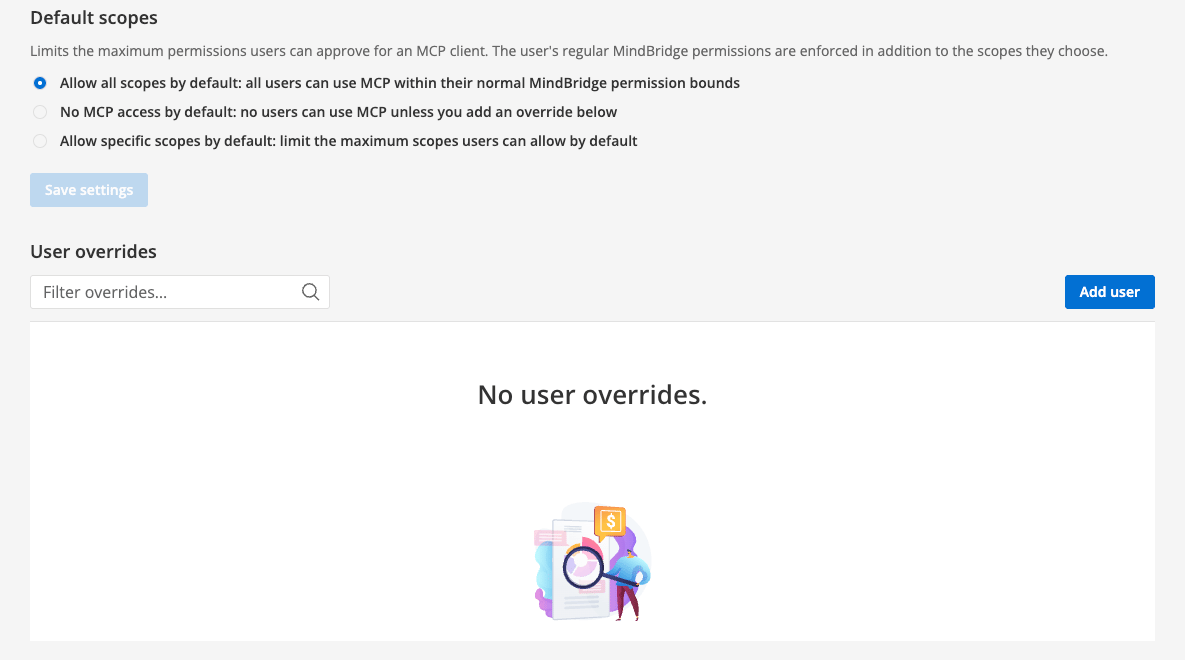 Choose one default:
* **Allow all scopes by default:** All users can use MCP within their normal MindBridge permission bounds.
* **No MCP access by default:** No users can use MCP unless you add an override. Use this for testing MCP with a subset of your users.
* **Allow specific scopes by default:** Limit the maximum scopes users can approve. For example, allow analysis metadata without analysis result data (row access).
**User overrides** are exceptions to that default. You can grant a named user all scopes, a subset of scopes, or no MCP access. Select **Add user** to choose the person. Overrides are ignored if **MCP access** is set to **Off**.
For a cautious rollout, turn **MCP access** on, set **No MCP access by default**, then add user overrides for the people who should connect.
## Active grants
**Active grants** lists each current connection: user, application domain, application name, scopes, and last used. Search the list by user or application.
To stop further MCP access through an application, revoke that grant.
Choose one default:
* **Allow all scopes by default:** All users can use MCP within their normal MindBridge permission bounds.
* **No MCP access by default:** No users can use MCP unless you add an override. Use this for testing MCP with a subset of your users.
* **Allow specific scopes by default:** Limit the maximum scopes users can approve. For example, allow analysis metadata without analysis result data (row access).
**User overrides** are exceptions to that default. You can grant a named user all scopes, a subset of scopes, or no MCP access. Select **Add user** to choose the person. Overrides are ignored if **MCP access** is set to **Off**.
For a cautious rollout, turn **MCP access** on, set **No MCP access by default**, then add user overrides for the people who should connect.
## Active grants
**Active grants** lists each current connection: user, application domain, application name, scopes, and last used. Search the list by user or application.
To stop further MCP access through an application, revoke that grant.
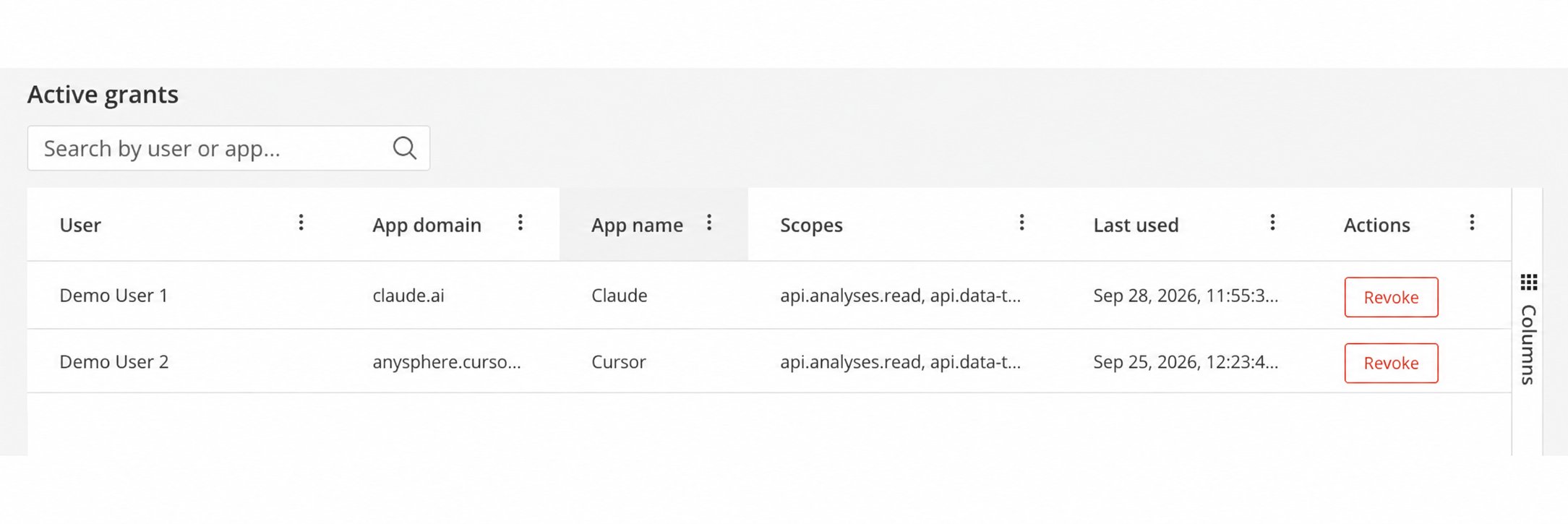 Revoke a grant when someone stops using that assistant, leaves a role that should not have this access, or you notice unexpected sharing or tool behavior.
Revoking a grant stops further MCP access through that application. It does not change the user’s ability to open analyses in MindBridge, and it does not delete information already retrieved by the assistant.
Manage retained conversations, generated files, and other copies through the AI provider’s controls and your organization’s procedures.
If you notice unexpected access, sharing, or tool behavior, stop the workflow, revoke the grant, and contact your administrator or security team.
When a user is disabled in MindBridge, their connected agents automatically lose access within a few minutes.
## Save settings
Select **Save settings** after you change **MCP access**, default scopes, or user overrides. Changing a radio button without saving does not apply the policy.
Saving a tighter policy updates existing grants and removes scopes that are no longer allowed. Review the saved policy for your environment rather than assuming a default.
Revoke a grant when someone stops using that assistant, leaves a role that should not have this access, or you notice unexpected sharing or tool behavior.
Revoking a grant stops further MCP access through that application. It does not change the user’s ability to open analyses in MindBridge, and it does not delete information already retrieved by the assistant.
Manage retained conversations, generated files, and other copies through the AI provider’s controls and your organization’s procedures.
If you notice unexpected access, sharing, or tool behavior, stop the workflow, revoke the grant, and contact your administrator or security team.
When a user is disabled in MindBridge, their connected agents automatically lose access within a few minutes.
## Save settings
Select **Save settings** after you change **MCP access**, default scopes, or user overrides. Changing a radio button without saving does not apply the policy.
Saving a tighter policy updates existing grants and removes scopes that are no longer allowed. Review the saved policy for your environment rather than assuming a default.