> ## Documentation Index
> Fetch the complete documentation index at: https://developer.mindbridge.ai/llms.txt
> Use this file to discover all available pages before exploring further.
# Get Started
Connect a compatible AI assistant to MindBridge so you can explore completed analyses with plain-language questions.
## Before you begin
You need:
* A MindBridge account with access to the completed analyses you want to explore. If you cannot see an analysis in MindBridge, MCP cannot see it either.
* MCP enabled by MindBridge for your environment (also called your tenant). MCP is not enabled by default. If it is not enabled, contact your MindBridge account team.
* A compatible AI assistant that supports remote MCP connections and OAuth sign-in. MindBridge has tested this MCP with common LLM providers such as **ChatGPT**, **Claude**, **Cursor**, and **Microsoft Copilot Studio**. Other assistants that support a remote MCP server URL and OAuth may also work. Menu names may differ by product.
* Your organization’s approval to use that assistant with the MindBridge data you intend to access.
Each user authorizes their own connection. Sign-in uses OAuth 2.1; you do not need API keys, service accounts, or shared credentials.
Read-only access does not mean the assistant cannot copy data. See [Security, Privacy, and Responsible Use](/mcp/security-privacy-and-responsible-use). For retention and regional processing, see [Data Processing and Retention](/mcp/data-processing-and-retention).
## MindBridge MCP Settings Page
You must be a MindBridge administrator to view **Settings → MCP**. On that page you can:
* Copy the **MCP server URL** for your environment. Each environment has its own URL. Connecting to the wrong URL queries that environment’s analyses.
* See **connected applications** you have authorized.
* **Revoke** access for an application you no longer need. See [Manage or Revoke Access](/mcp/manage-or-revoke-access).
If you are not an administrator, ask one for the MCP server URL for your environment. If you are an administrator and the page is still unavailable, contact your MindBridge account team to confirm that MCP is enabled.
## Connect your AI assistant
1. Sign in to **MindBridge** as an administrator and open **Settings → MCP**.
2. Copy the MCP server URL for your MindBridge environment.
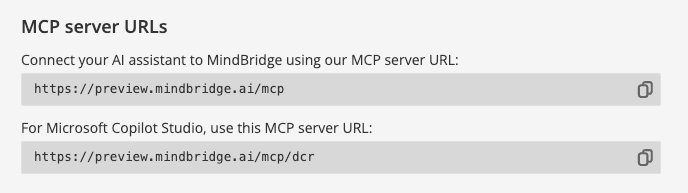 3. In ChatGPT, Claude, Cursor, Microsoft Copilot, or another compatible assistant, open MCP or connector settings and add the copied URL.
4. Sign in to MindBridge when prompted, using your normal sign-in process and your organization’s existing identity controls.
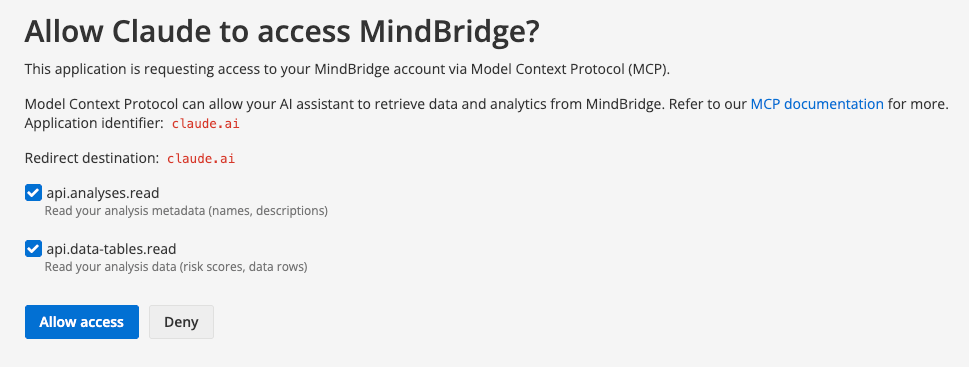
5. Review the MindBridge consent screen and approve the permissions needed for your task. To use all available capabilities, grant both analysis metadata access and analysis result data access, described below.
3. In ChatGPT, Claude, Cursor, Microsoft Copilot, or another compatible assistant, open MCP or connector settings and add the copied URL.
4. Sign in to MindBridge when prompted, using your normal sign-in process and your organization’s existing identity controls.
5. Review the MindBridge consent screen and approve the permissions needed for your task. To use all available capabilities, grant both analysis metadata access and analysis result data access, described below.
 After you connect, start with [Explore an Analysis](/mcp/explore-an-analysis).
## Access and permissions
Every request runs with your MindBridge user permissions. The assistant can access only the analyses available to you in MindBridge. Removing or restricting your access in MindBridge also affects your MCP connection.
The consent screen requests access through two read-only permissions:
* **Analysis metadata (`api.analyses.read`):** Find analyses, describe their structure, and explain control points.
* **Analysis result data (`api.data-tables.read`):** Query specific result rows or aggregates.
If you grant only metadata access, the assistant can explore analysis structure but cannot retrieve underlying result rows. There is no write permission available for this connection.
After you connect, start with [Explore an Analysis](/mcp/explore-an-analysis).
## Access and permissions
Every request runs with your MindBridge user permissions. The assistant can access only the analyses available to you in MindBridge. Removing or restricting your access in MindBridge also affects your MCP connection.
The consent screen requests access through two read-only permissions:
* **Analysis metadata (`api.analyses.read`):** Find analyses, describe their structure, and explain control points.
* **Analysis result data (`api.data-tables.read`):** Query specific result rows or aggregates.
If you grant only metadata access, the assistant can explore analysis structure but cannot retrieve underlying result rows. There is no write permission available for this connection.